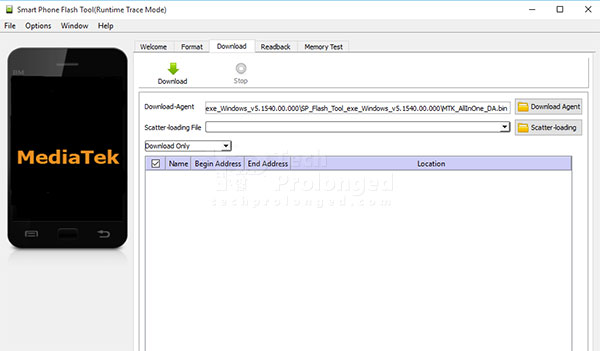
SP Flash Tool is a software tool or utility for advanced users
to manually flash or upgrade Android smartphones based on MediaTek
chipsets. Examples include Infinix, Gionee, InnJoo, Tecno, etc. This
tool can be used a life saver of a dead smartphone if used properly.
Requirements
- SP Flash Tool itself – click here to download
- VCOM Drivers properly installed on Windows PC
- USB Cable – shipped with the phone or can be found anywhere now a days.
- Firmware files (or recovery, boot images)- click here to download
Follow the steps after the break.
Steps to Follow
1- Turn-off the phone if it’s not already.
2- Run the SP Flash Tool (recommended running as Administrator)
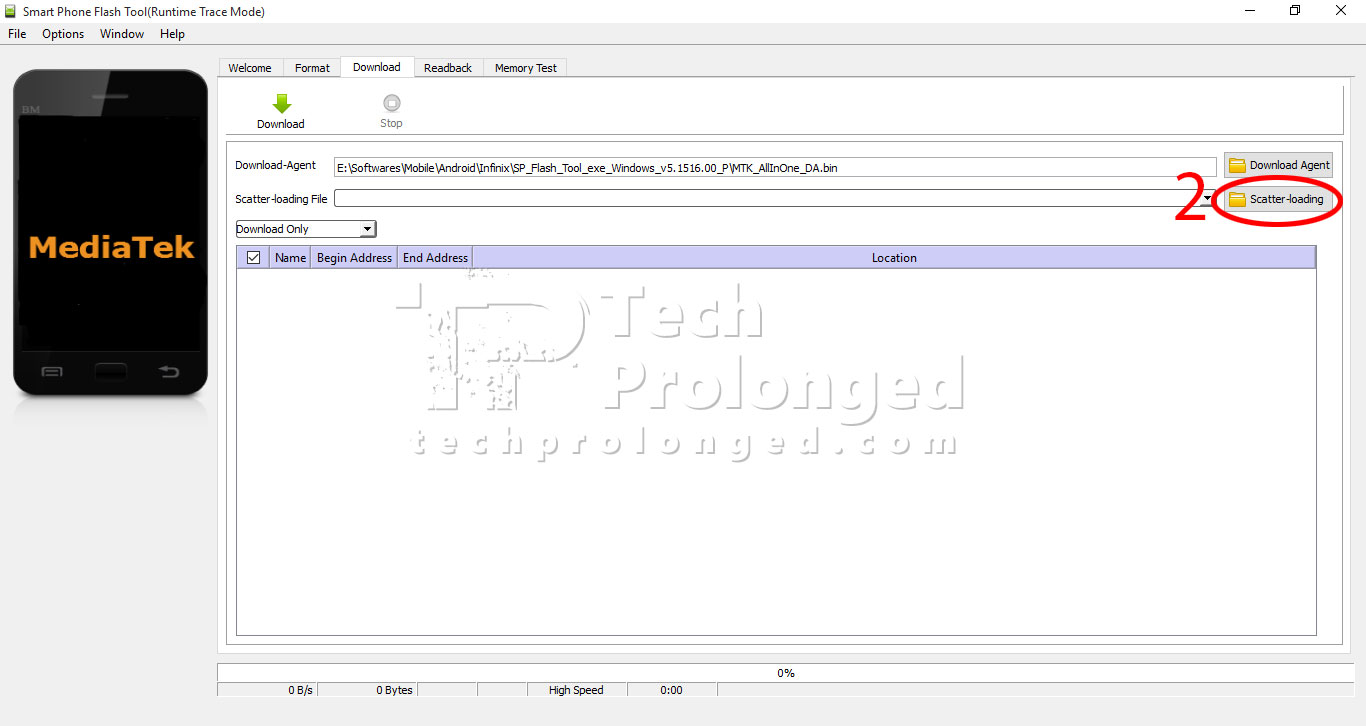
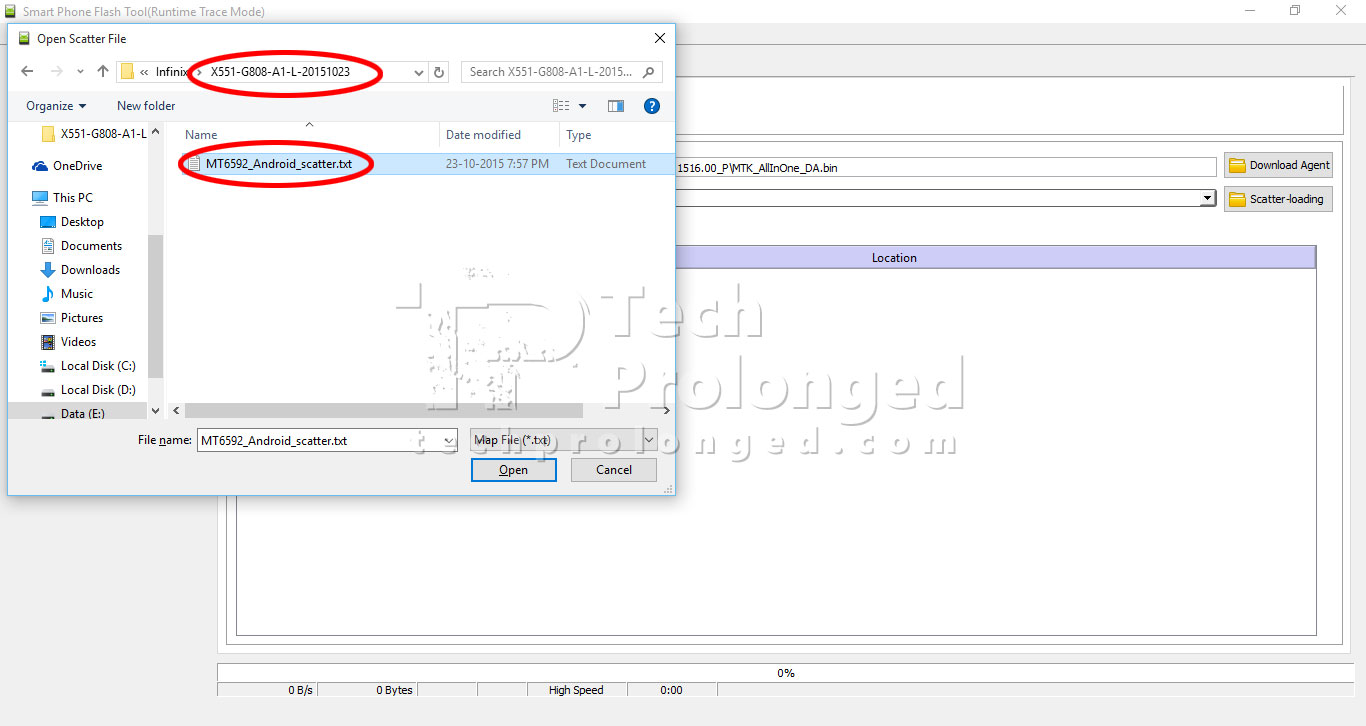
3- Click on the
Scatter-loading button and choose the scatter file from the firmware folder.
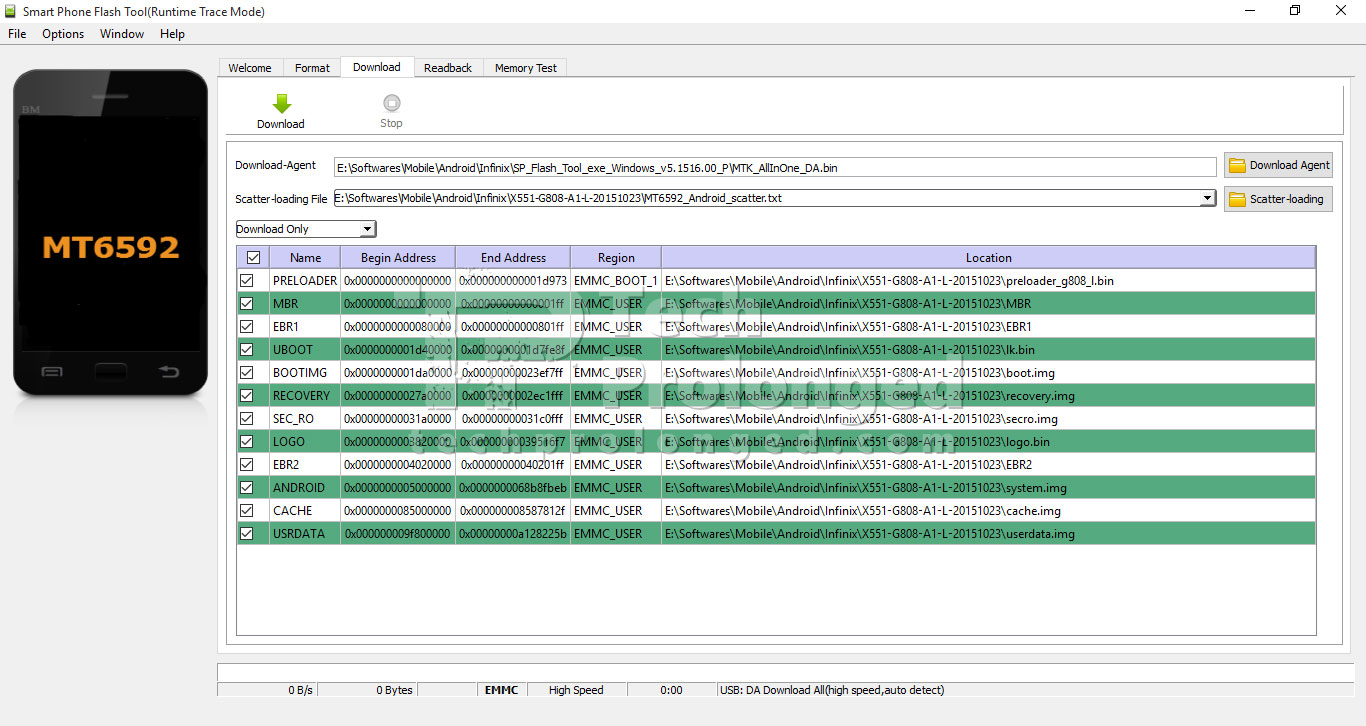
At this stage your scatter file should have been loaded with all the partitions listed with checked marks as shown below.
Note: The partitions list
has checkboxes with every entry. You only select all partitions when you
want to flash a full firmware on your phone. Otherwise you select only
those entries which you want to flash. For example if you want to
install only recovery or boot image, you will select only those entries.
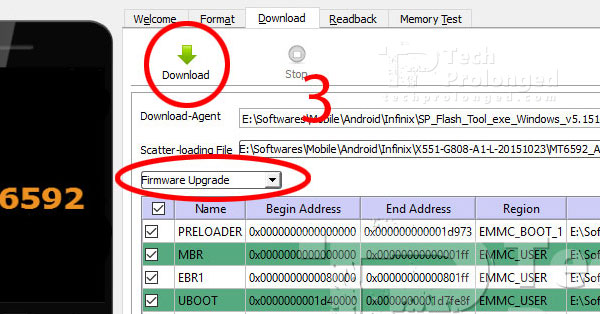
4- Now, below the scatter file, there is method to choose for flash. You will have three options
- Firmware Upgrade: Choose it if you want to flash new firmware but want to preserve your data
- Download Only: Choose it if you want to flash a firmware with fresh factory settings.
- Format All + Download: Do not use this method unless both above methods fail to fix a dead phone.
Note: If you are flashing only selective partitions such as
recovery or
boot image, you must choose
Download Only method.
5- Now click the big “Download” button with green arrow facing down.
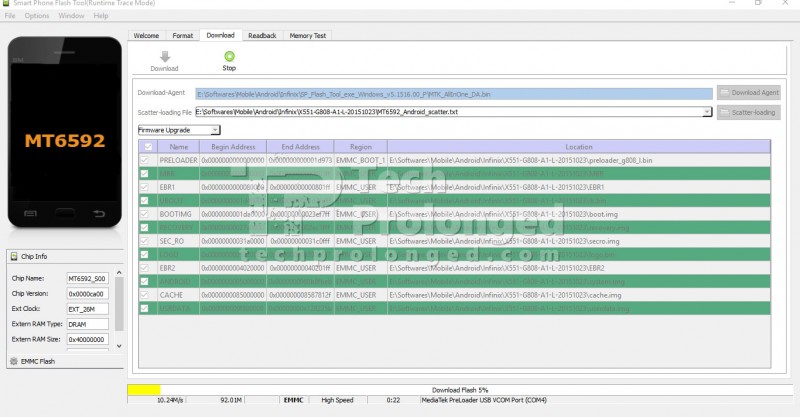
Once you click the download button, the tool will be disabled for any more user-inputs. It’s now waiting for the
phone connection.
6- Now connect your phone to the computer. Make sure it’s
turned off before you connect it. The
flash tool should detect it instantly and automatically start the flashing process.
Do not disconnect your phone once the flashing process has been started.
Once the flashing process completes, it will provide you with the
OK message and big
Tick icon.
Note: Flashing process time depends on what you
choose to flash. A full firmware flash including system image may take
up to 10 minutes while selective images such as recovery or boot should
flash in a couple of seconds.