Saturday, 23 December 2017

PC overheating problems

Laptops have become more powerful and compact than ever before. A steep increase in CPU performance was facilitated by chips that are ever more densely packed with transistors. In parallel, slimmer cases pack an ever increasing number of processors and stronger graphics cards support bigger screens with higher resolutions. These developments come at a cost: excess heat.
The greatest threat for your laptop, except for your coffee mug, is overheating. It can cause hardware failure and permanent damage. Let me show you how to prevent or fix an overheating laptop and thus improve the performance and extend the lifespan of your computer.

The Basics of Overheating Computers

How Do You Know Your Laptop Is Overheating?

How to Fix an Overheating Laptop Burning Laptop 670x440
A sure sign that your notebook gets too hot though is when your fan is always running at maximum speed. You may also experience reduced performance because the CPU cuts back its clock speed to escape heat pressure. Moreover, the fail-safe software may trigger a sudden shut down to prevent hardware damage.

What Causes Overheating?

In two words: insufficient cooling.
Potential reasons include dust blocking intake grills or exhaust ports, a clogged up fan, or a degenerated thermal grease (aka thermal compound) between the heat sink and the CPU. You can fix all of these things yourself, though some jobs will be tougher than others.

How Can You Prevent or Fix an Overheating Laptop?

Several simple hardware fixes can cure overheating.

1. Fix Internal Cooling

The first and most important thing you need to do when your laptop is overheating is to clean the fan(s) that provide(s) cooling to the CPU and graphics card. Over time, they build up layers of dust and dirt that slow them down and block airflow. Consult your laptop’s manual or manufacturer to find out how you can open the laptop to access and clean these parts.
Before you attempt to do any cleaning, however, follow these steps:
  1. Shut down the computer
  2. Remove the battery
  3. Unplug the power strip
Carefully clean the fan(s) with a cotton swab dipped in a drop of alcohol. Make sure the alcohol has completely evaporated before you reconnect the laptop to the power. You can also use a vacuum cleaner to remove the dust and dirt that clocks up the fan(s). To prevent damage to the fan, do not let it revolve in the wrong direction. If you want to use canned air to clean the fan, arrest the fan by holding it down.
How to Fix an Overheating Laptop Laptop Cooling 670x420
Next, you can clean the exhaust port by sucking out air with a vacuum cleaner. The exhaust port usually sits on the side of the laptop. It’s the opening that blows out hot air.
The intake grills are small openings that allow air to be sucked into the laptop by the revolving fans. They can sit on the sides or at the bottom of your notebook. To clear the intake grills, spray them with canned air.
Finally, you can apply fresh thermal grease to the interface between the CPU and its heat sink. Again, please consult the laptop’s manual or manufacturer to obtain instructions on how to disassemble these components.

2. Keep the Laptop on a Hard & Flat Surface

Most laptops suck in cooling air through their bottoms. Uneven surfaces, like a blanket, pillow, or your lap,. Subsequently, the cooling is impaired, heat builds up, the surface becomes hot, the temperature of sucked in cooling air increases, and eventually the laptop overheats.
This scenario is easily avoided by keeping the laptop on a hard and flat surface. You can use something as simple as a tray or get a special laptop holder or lap stand.

3. Invest in a Laptop Cooler or Cooling Pad

Laptop coolers are meant to provide additional cooling. However, getting the wrong cooler can actually make the problem worse. Before you purchase a cooler, you need to understand the flow of air into and out of your laptop.
As mentioned above, most laptops suck in air for cooling from the bottom. This makes sense because warm air rises upwards. However, a cooler that sits underneath the laptop and sucks air away from it, does not contribute to laptop cooling and rather accelerates overheating.
How to Fix an Overheating Laptop Laptop Cooling Stand 670x400
If your laptop has intake grills at its bottom, purchase a cooler that blows cool air upwards, i.e. into the laptop. You can also get a passive cooler that does not consume power and merely absorbs heat.
If you’re handy,

What Are Potential Software Fixes?

If none of the hardware fixes result in lasting improvements, you can also revert to software fixes that address the performance and power usage of your laptop. However, addressing excessive heat with a software fix means you give up performance in favor of preserving the hardware.
You can either reduce the brightness of your screen or reduce the CPU clock speed. In Windows, underclocking or undervolting is done in the BIOS, but can also be controlled through software tools.

Monday, 27 November 2017

HOW TO REMOVE VIRUS WITHOUT ANTIVIRUS

HOW TO REMOVE VIRUS WITHOUT ANTIVIRUS

  1. Insert your Virus infect Pendrive and Scan for virus, if detected then well and good otherwise go ahead to remove it from command prompt.
In my case it has detected the virus even though I would like show you, how to remove this virus using command prompt?
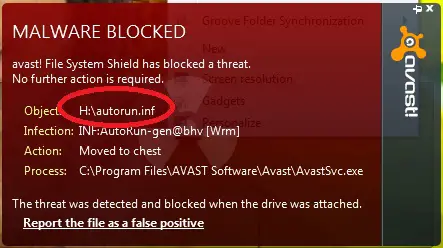
Virus-detected-usng-avast-antivirus
  1. As you can see that antivirus installed on my system has detected “autorun.inf” file.
This is the file; if you try to open it then your system may get infected with virus.
  1. So, let us remove it from command prompt.
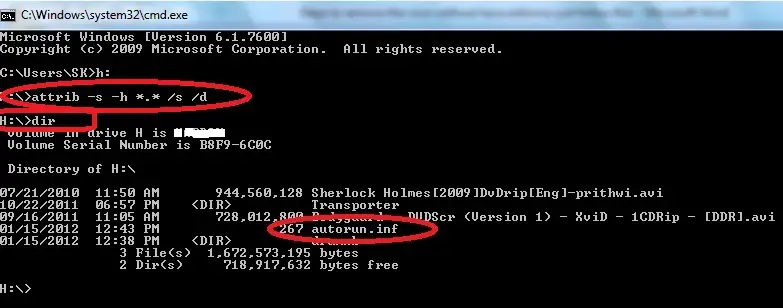
Open command prompt  in administrator mode and go to the virus infected drive by typing “Drive name with colon” (H: ) then enter.
Now type attrib -s -h *.* /s /d and enter. And continue by typing “dir” which will show you all files/folders in that drive, as you can see that autorun.info files is present in this drive.
Autorun-file
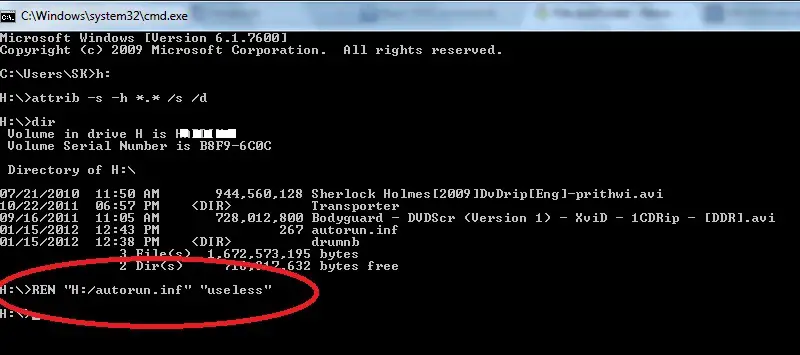
  1. Now if you want to delete it then just type “RD autorun.info(i.e. name of file/folder to be deleted)” or rename it to delete it manually.
To rename the file just type in command prompt
REN “Path of files/folder to be deleted” (space) “Name to be given”
Or if you are in that drive using command prompt then type
REN “Name of files to be deleted” (space) “Name to be given”
Rename-Autorun-file
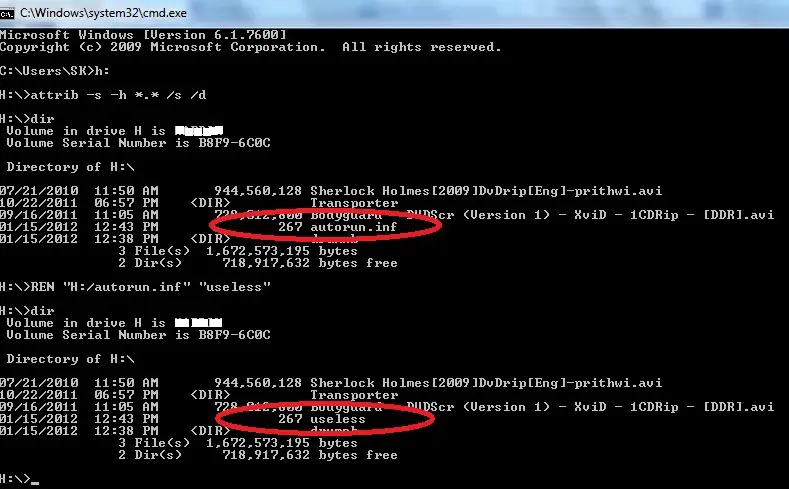
  1. Now you can check that autorun.info has been rename as useless
File-Renamed-as-Useless
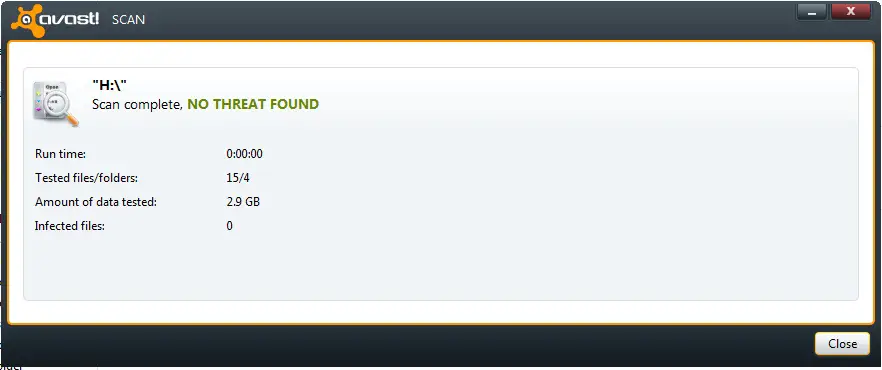
  1. Now if you will scan then your antivirus won’t detected virus in that drive.
No-threat-Detected
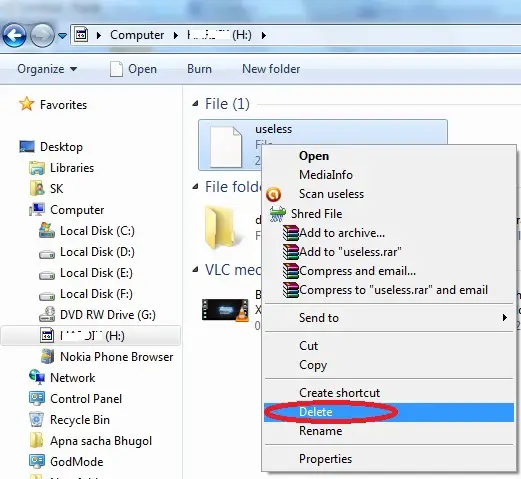
  1. Now if you want then you can delete this file after opening the drive.
Delete-useless-file

You may not go for such a large procedure to delete any virus affected file if you have daily updated antivirus. But this is quite useful when one of your folder is giving you trouble by hanging your system when you open that folder.
Thats all guys you have removed the virus simply using command prompt!!!

Tuesday, 21 November 2017

How To Boot The Pendrive/USB Drive without software


You can able to make your Pendrive bootable in a couple of minutes. However, you can able to use Windows vista, 7 and 8. without any type of software You can’t able to use it with Windows 10. It is very simple to do follow  the  steps carefully.
  1. First Open Command Prompt as an Administrator.
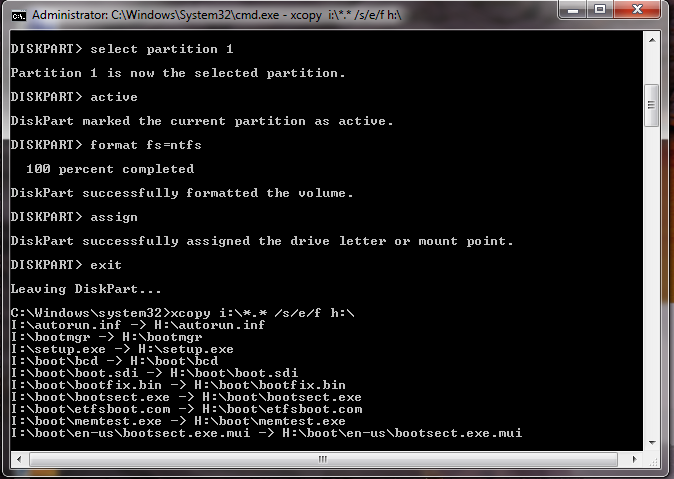
  2. After opening CMD, enter this command  disk part then press enter key
  3. Then it will show you some information about your PC. After you should have to enter another command list disk then press enter key
  4. Now, it will show about connected disks. Then enter next command there select disk 1(keep in mind there is only one pendrive is attached to the computer),then press enter key
  5. you must clean your drive, so enter new command there clean then press enter key
  6. Until the Step5,just it is initizating, now the real task begin...,Enter command create partition primary,then press enter key it will create a partition in the selected Pendrive.
  7.  Enter new command here select partition 1 then press enter key and then enter another command active and then press enter key to activate the partition.
  8. Now format your USB Drive by  Enter this command format fs=fat32 quick or format fs=ntfs quick and press enter key You can able to see progress in percentage.
  9. Enter this command assign and hit enter, Then type exit for ending disk management program.
  10. The last step is that you have to copy all windows files to USB Drive. 


Untitled14

Thats all you pendrive became bootable!!!!!!

Sunday, 19 November 2017

Top 5 Best Websites To Download Free Softwares

Top 5 Best Websites To Download Free Softwares 

Are you insearch of free software in secured website,Then you must visit the following sites,they are most secured and trusted websites around the internet

Top 5 Best Websites:

  1. FileHippo
  2. BrotherSoft
  3. Softonic
  4. Cnet 
  5. Filehorse

1. FileHippo – Download Free Software


A well-known and a trust worthy website from where we can download the software for our PC. You will get software of almost all categories. If you have an old system which you have inherited from your elder brother or sister then too you can get software for earlier versions. All the software that is available on File Hippo are cross checked and are 100% free from malware. In terms of services, File Hippo has over 3,409,286,063 successful downloads and this mark is increasing rapidly every second. Along with this, every 6 minutes File Hippo runs a process to update and malware.


Click here for Free software download from FileHippo:-http://www.filehippo.com

2. BrotherSoft – Free Software Download


To spread the brotherhood this website is there as it provides you several free software. This website was initially launched to provides software for PC only but a few months earlier BrotherSoft had added the option to get Apk files too. Over 800,00 Apk files are there on the BrotherSoft server. Along with this, there are thousands of free and paid software for your PC or MAC. From BrotherSoft site, software is easy to download and you will not any virus or malware with the files. BrotherSoft is regularly rechecking its server in case they have any errors then it could be resolved. Users can download the software and can get the access to a treasure of several other software by just creating an account on Brothersoft.


Click here to download software from Brothersoft:-http://www.brothersoft.com

3. Softonic – Best Software Download


You might have heard the name of a software provider Softonic. Softonic is our third nominee in the list of Top 5 Website to Download Software for PC. Similar to BrotherSoft, Softonic was also designed to help the PC users but now it is a great platform that provides Apk for the Android devices. Softonic provides you software that is free of cost and it will give you trial versions of Paid Softwares too. One requirement that Softnic asks from you, is that you have to create an account. Along with this Softonic adds up news software at a regular period of time so that it can help its users to walk with the change in technology. However, this website is available in 8 different languages to help the PC users all over the world.
Click here for software from Softonic:-http://www.softonic.com

 4. Cnet for PC Software


Another website that can help you to download software for your PC. It’s a huge collection of almost all types of software for your PC and Mac. This website also provides you some mobile application that runs on several operating systems including Android and IOS. Along with this user can download software for your iPod. Cnet Database Is regularly updating and it keeps even old version software too. Cnet is a trust worthy website and you will only get the safe and secure software to use on your System.

Click here for Pc software download from Cnet:-http://www.cnet.com

 5. Filehorse – Windows Software Download


The last software provider on our list to get free download software for PC is Filehorse. This website appears to be very simple and light. FileHorse is a big website that contains hundreds software of different category for different platforms of computers. FileHorse is updating their database every day, every hour. All the software that you will get on FileHorse are 100% spyware free and didn’t contain any harmful file. You can share the software on Social Network sites like Facebook, Twitter or Instagram. Servers of FIleHores are so responsive and fast that you can download the software at a very high speed without any interruptions.

Click here to get windows software from Filehorse:-http://www.flehorse.com


Try it,I damn sure you can enjoy!!!!!!....

Saturday, 18 November 2017

How to Recover Deleted File without using any Software


How to Recover Deleted File without using any Software?

For example, let’s assume that you have permanently deleted “My Sweet Heart.JPG” from the folder named “My LIFE”, and now you want to recover “My Sweet Heart.JPG” back. Do this simple trick to recover your Sweet Heart.JPG
  • Go to the folder “My LIFE” and right click on it.
  • Select “Restore previous versions”.
simple trick to recover deleted file without software
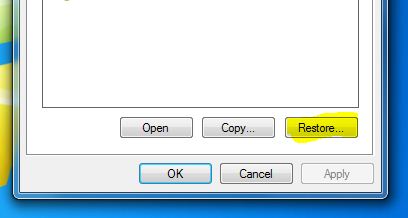
  • Now, you will see an option to recover the folder.
  • If you don’t see “Restore Previous Versions” by Right Clicking, Go to Control Panel to turn on the System Protection.
  • Then click on System & Security > System> System Protection (on the left side bar).
Control Panel - System Protection
  • Available drives with corresponding protection will be shown.
  • Select a particular drive and click on configure.
  • Click on “Restore system settings and previous versions of files” and Click on “OK”.
  • That’s all, now you will see an option to recover the particular file.
How to Recover a Permanently Deleted Files Without Using any Software on Computer/Laptop System


  • Your deleted file is restored again.

Pro Tips to Use Chat GPT Effectively with Examples (Part 2)

In part 1 of our blog post Click for part 1 , we covered some pro tips to help you use Chat GPT effectively. In part 2, we'll go over mo...